Overview#
You can export sessions in multiple ways to suit your workflow.
To export an entire session directly from SQL Race to an SSN2 file, right-click the session in the Session Browser and select Export Session. Make sure the session is not currently loaded into a Set before exporting. This option is not available for live sessions, .ssn or .ssn2 files, or RTA sessions.
For more control, such as exporting specific parameters, laps, or using formats other than SSN2, use the Export Manager. Open it from Tools > Export Data or press Ctrl + E.
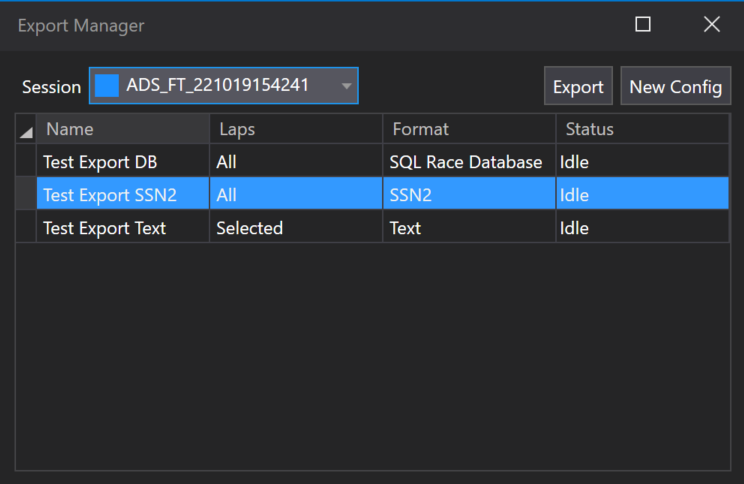
The Export Manager lets you create and manage export configurations (see example below). To export, select the desired session from the Active session dropdown (showing sessions loaded via the Session Browser), choose an export configuration, and click Export. The Status field will display progress as a percentage and update to Done when the export is complete.
Sharing your ATLAS configuration#
To copy your ATLAS settings to another PC or share them with a colleague, use a configuration bundle (.acgx file). Open Tools > Import/Export Configuration.
To export your configuration:
- Select the Export Current Configuration tab.
- Click Refresh current configuration.
- Enter a Profile Name.
- Under Source files included in export, select the files to include: Functions, Constants, Circuits, PCU8D Raw Files, Bit Configuration File and Alarms.
- In the settings tree, select the settings to include.
- Click Export.
To import a configuration bundle:
- Select the Import ATLAS 10 Configuration Bundle tab.
- Under Select ATLAS 10 Configuration Bundle, click ... and choose the
.acgxfile. - Select the Profile To Import.
- Under Files Included in Bundle, select the files to import.
- Set Source File Action to Ignore files with the same name or Overwrite files with the same name.
- Select the settings to import, then click Import.