Interacting with Parameters#
Parameter Browser#
The Parameter Browser allows you to select and manage Parameters for the currently selected Display. The available Parameters depend on those recorded in the loaded Session.
Opening the Parameter Browser
- Click the Parameter Browser icon on the Browser Toolbar.
- Select View > Parameter Browser from the Menu Bar.
- Press P or Insert with a display selected.
- Right-click anywhere on a Display and choose Parameter Selection from the context menu.
Parameter Browser Layout
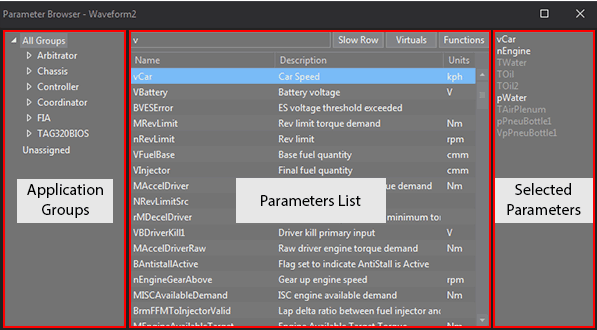
-
Application Groups Panel (Left)
- Browse and select Application groups to view their Parameters.
- Expand/collapse groups using arrows or double-click.
- Use "All Groups" if unsure where a Parameter is located.
-
Search Criteria and Parameters List (Center)
- Search for Parameters by name, description or application group. Name matches are listed first.
- Use the Slow Row, Virtuals and Functions toggles to show or hide those types of Parameter.
- Add Parameters to the Display by double-clicking or dragging.
- Select multiple Parameters with Ctrl/Shift + Click.
- When comparing sessions, expand Parameters to see applicable sessions.
-
Selected Parameters (Right)
- Shows Parameters added to the current Display.
- Parameters with data are white; those without are greyed out.
- Select a Parameter to highlight it on the Display.
- Press Delete to remove a selected Parameter
Searching from the keyboard
| Key or text | Result |
|---|---|
* in the search text |
Wildcard that matches any characters |
- at the end of the search text |
Sorts results by name, A to Z |
+ at the end of the search text |
Sorts results by name, Z to A |
Up / Down |
Moves the selection in the results list |
Enter |
Adds the selected Parameters to the active Display |
Esc |
Clears the search and closes the Parameter Browser |
Parameter list columns
Right-click a column header in the Parameter list to choose which columns are shown. As well as Name, Description and Units, you can show property columns: Color, Display Min, Display Max, Format String, Filter Type and Filter Frequency. Values that have been changed are shown in bold. Right-click a property value and select Clear Global Value to remove a global value.
A * in the first column means one or more of its properties have been changed from the session default. Hover over it to see the tooltip Changed from session default.
Right-click a Parameter row and select Properties to open its Parameter Properties.
Changing Parameter Colour#
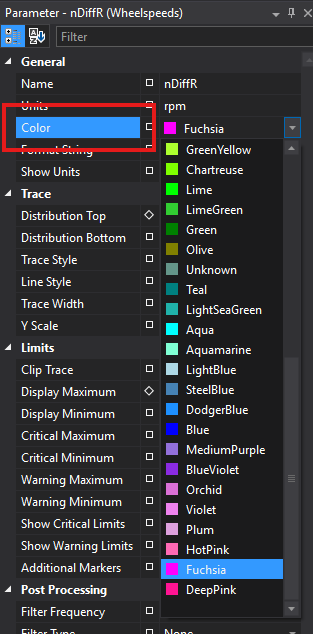
- Double-click the Parameter name on a Display to open the Parameter Properties window.
- In the Appearance section, type a colour name or select from the dropdown.
- Press Return or click to confirm the colour.
Parameter Aliasing (Changing Parameter Name)#
Parameter Aliasing lets you assign custom names to Parameters.
- Replace Mode: Substitute original names with a new name in the same group.
  <AliasingConfiguration>
      <Aliases>
        <Alias mode="Replace">
            <OriginalNames>
              <Name>vCar:Chassis</Name>
            </OriginalNames>
            <NewName>Speed</NewName>
        </Alias>
      </Aliases>
  </AliasingConfiguration>
- Pick Mode: Link a new name to one of several source names, with priority order.
  <AliasingConfiguration>
      <Aliases>
        <Alias mode="Pick">
            <OriginalNames>
              <Name>Speed:Chassis</Name>
              <Name>CoverageSq:ATLAS</Name>
            </OriginalNames>
            <NewName>GForce</NewName>
        </Alias>
      </Aliases>
  </AliasingConfiguration>
Configure aliasing in aliasing.config saved at %USERPROFILE%\Documents\McLaren Applied Technologies\ATLAS 10\.
Warning
After making changes to aliasing.config, you must restart ATLAS for the new aliases to take effect.
If a parameter (e.g., pBrake) is already present in your workbook and you create an alias (e.g., BrakePressure), pBrake will remain in the workbook but will no longer be searchable in the Parameter Browser. Only the alias name (BrakePressure) will be available for searching. To remove the old parameter name from your workbook, you need to delete it manually.
Application Groups#
Applications organize Parameters into groups (e.g., Bios, Chassis, Engine) for easier navigation. Groups are shown in a tree format in the Parameter Browser.
Number Formats#
Customize how Parameter values are displayed using format strings (similar to C language):
[text]%[control][total digits].[decimal digits][format code]- Control characters:
+(show sign),-(left justify),0(leading zeros) - Format codes:
f(float),d(integer),x(hex lower),X(hex upper)
Set formats in the Appearance frame of the Parameter Properties panel.
Parameter Properties Tool Window#
Manage Parameter appearance and behavior:
- Default: Core properties from data acquisition.
- Local: Overrides for the current Display.
- Global: Applies property value to all instances of the display type in the workbook.
The indicator next to each value shows which level it comes from: Default, Local or Global.
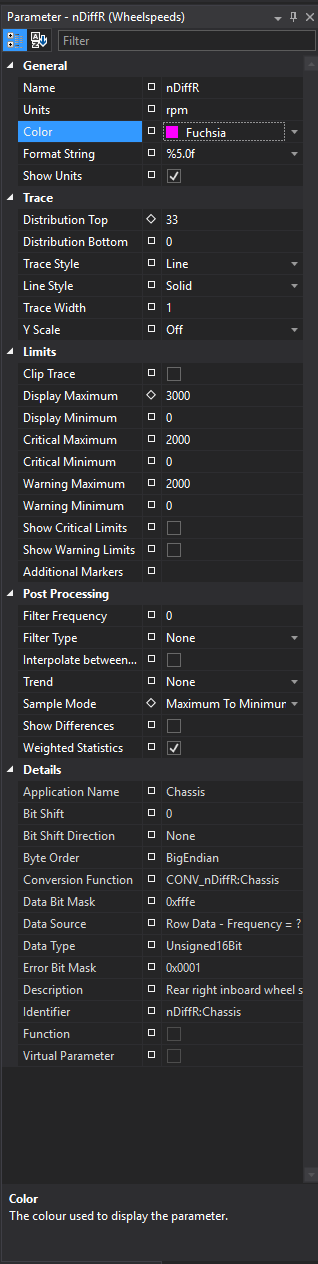
Editing Properties
- Open the Parameter Properties tool window.
- Click a property value to edit.
-
Right-click the icon next to a value for options:
- Copy Name/Value
- Paste Value
- Show/Hide Description
- Make Global
- Force Global
- Clear Global Value
- Reset
- Copy values from primary (Parameter properties only)
Resetting all Parameter properties#
To undo property changes for every Parameter at once, click Reset All Parameter Properties on the toolbar. In the Reset Parameter Settings window, choose one option and click Reset Parameter Settings:
- Reset to Default: resets the settings for all parameters to their default settings.
- Reset to Primary: resets the settings for all parameters in compare to the setting of the primary session parameter.
Parameter properties in compare mode#
When a Set holds more than one Session, you can choose where the properties of the compared Sessions come from. Go to Tools > Options > General > Data and set Parameter Properties in Compare mode to Default data, Primary session or User defined.
Note
Parameter property inheritance only happens on session load.
Tip
Use the Parameter Browser and Properties tool window to fully customize how Parameters are displayed and behave in ATLAS.