Navigating the Session Browser#
Purpose of the Session Browser#
The Session Browser is the primary interface in ATLAS for managing telemetry data Sessions. It allows users to:
- Load previously recorded (Historical) Sessions
- Record new (Live) Sessions
- Configure and manage data Recorders
- Combine multiple Sessions into Composite Sessions
- Group Sessions into Compare Sets for analysis
- View and edit Session metadata
- Connect to various data sources (e.g. databases, folders, services)
This tool is essential for any user working with telemetry data in ATLAS, whether for real-time monitoring or post-session analysis.
How to Open the Session Browser#
You can open the Session Browser in one of the following ways:
Toolbar Icon
Click the Session Browser icon on the ATLAS toolbar.
Menu Bar
Navigate to View > Session Browser.
Keyboard Shortcut
Press Ctrl + L on your keyboard.
Once opened, the Session Browser will appear within the ATLAS interface. Press F5 in the Session Browser to refresh it.
Session Browser options#
To change how the Session Browser refreshes and how many items it shows, go to Tools > Options > Plugins > Session Browser:
| Option | What it does |
|---|---|
| Should Auto-Refresh | Refreshes the Session Browser automatically. Off by default. |
| Auto-refresh Interval (seconds) | How often the automatic refresh runs. Default 300 seconds. |
| Filters Display Limit | Maximum number of values listed under each filter. Default 100. |
| Session Query Result Limit (Sessions) | Maximum number of Sessions returned by a query. |
Layout of the Session Browser#
The Session Browser is divided into six main panels, each serving a specific function:
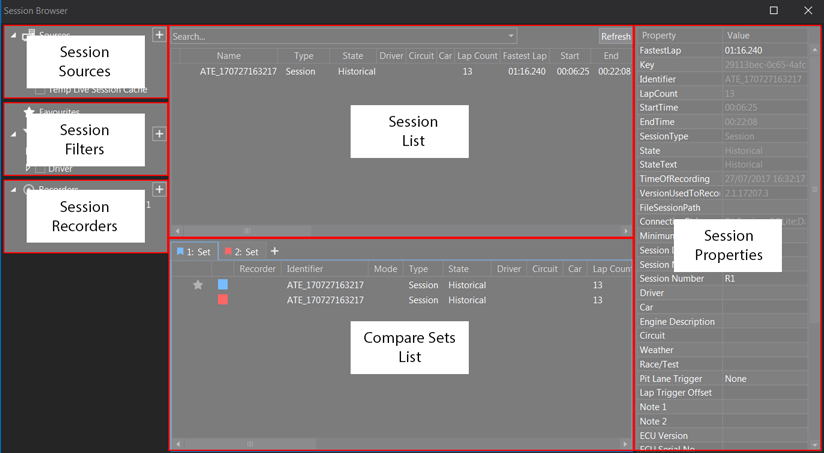
1. Session Sources#
This panel allows you to define where ATLAS should look for Sessions. Supported sources include:
- Folders on your local machine or network
- SQL Race databases
- RTA service connections (requires an RTA licence)
To add a new source:
- Click the Add Data Source button or right-click the Sources panel.
- Choose one of the following:
- Connection Manager...: For SQL Race databases
- Folder Manager...: For local or network folders
- Service Connections...: For RTA hosts
Once added, ATLAS will index the source and display available Sessions in the Session List.
2. Session Filters#
Filters help you narrow down the Sessions displayed in the Session List. By default, filters include:
- Circuit
- Driver
- Run Type
You can customise filters by:
- Right-clicking the Filters title to see all available categories
- Selecting or deselecting filter options
- Saving the current filter combination as a preset for quick reuse
To save a filter preset, click Save current filters as a preset or right-click a filter group and select Save Current Filters As Preset. Enter a new name, or select an existing name to overwrite it, and click Save. Presets are listed under Saved Filters, where you can right-click a preset to Rename or Delete... it.
The filter group right-click menu also has Collapse All and Clear All.
3. Session Recorders#
This panel is used to configure and manage data Recorders for capturing live telemetry. Supported Recorder types include:
- Data Server Telemetry
- Ethernet Telemetry
- File Telemetry
- Ethernet Multi-Session Offload
- Ethernet Offload
- TCP Listener Recorder
- NASCAR Telemetry Recorder (requires NASCAR licence)
- Stream Recorder
- USB Logger Recorder
Some Recorder types only appear when your licence includes them.
To control a Recorder, use its Auto record, Start and Stop buttons, or right-click it for Edit..., Auto Record, Start, Stop and Delete.... You can also select a Recorder and press F2 to edit it or Delete to remove it.
Recorder Modes
When adding a Recorder to a Set, you can define its behaviour:
- Create: Each new recording creates a new Session.
- Replace: Each new recording replaces the previous Session in the Set.
- Append: New recordings are appended to existing Sessions, forming a Composite Session.
Note
Starting a Recorder does not automatically load the Session into a Set. You must manually add it using the Session List or drag the Recorder into a Set.
4. Session List#
This panel displays all Sessions available from the selected source. Each entry includes metadata such as:
- Session type (Historical or Live)
- State
- Driver
- Circuit
- Number of laps
You can:
- Search for Sessions using the search box
- Right-click to add Sessions to new or existing Sets
- Drag Sessions into Sets or onto other Sessions to create Composite Sessions
- Select multiple Sessions using
Shift + ClickorCtrl + Click - Click Refresh to reload the list
- Clear Load Associate Sessions if you do not want associated Sessions loaded with the Sessions you select (it is selected by default)
To load the selected Sessions from the keyboard or mouse:
| Action | Result |
|---|---|
Enter or double-click |
Adds the Sessions to the current Set |
Ctrl + Enter or Ctrl + double-click |
Adds the Sessions to a new Set |
Shift + Enter or Shift + double-click |
Replaces the Sessions in the current Set |
Pinning Sessions
Right-click a Session and select Pin Session to keep it at the top of the Session List. Select Un-pin Session to remove the pin.
Exporting a Session
Right-click a Session and select Export Session to export it to an SSN2 file. This option is not available for live Sessions, Sessions that are loaded in a Set, .ssn or .ssn2 files, or RTA Sessions.
5. Compare Sets List#
Also known as the Set List, this panel shows which Sessions and Recorders are currently loaded into each Set.
Features include:
- Viewing Sessions within each Set
- Expanding Composite Sessions to see individual components
- Removing Sessions from Sets
- Customising columns (changes apply to both this panel and the Session List)
The active Set is highlighted with a coloured outline.
Working with Set tabs
- Press
Ctrl + Nto add a new Set, or click the new tab button (tooltip Add New Set). When the tooltip reads Sets Limit Reached, you cannot add more Sets. - Right-click a Set tab and select Rename to rename it.
- Press
Ctrl + F4to delete the selected Set, or right-click its tab and select Delete. - Right-click a Set tab and select Delete All Empty Sets or Delete All Sessions and Sets to tidy up.
Working with Sessions in a Set
- Click the colour square next to a Session to hide or show that Session in Displays. The primary Session cannot be hidden.
- Right-click the colour square to pick a different colour for the Session.
- Click the mode icon of a Composite Session to switch between Append Mode and Overlay Mode.
- Right-click a Session for these options:
- Remove Session
- Remove Recorder
- Remove Session and Recorder
- Promote to Primary: makes this Session the primary Session of the Set
- Copy Session in Current Set
- Select a Session and press
DeleteorBackspaceto remove it from the Set.
6. Session Properties#
This panel displays detailed metadata for the selected Session. Properties are colour-coded:
- White fields: Editable
- Grey fields: Read-only
Editable properties include:
- Session Name and Number
- Driver, Car, Engine, Circuit
- Weather, Notes, and other descriptive fields
- Lap Trigger Offset (used to align data across Sessions)