Event Display#
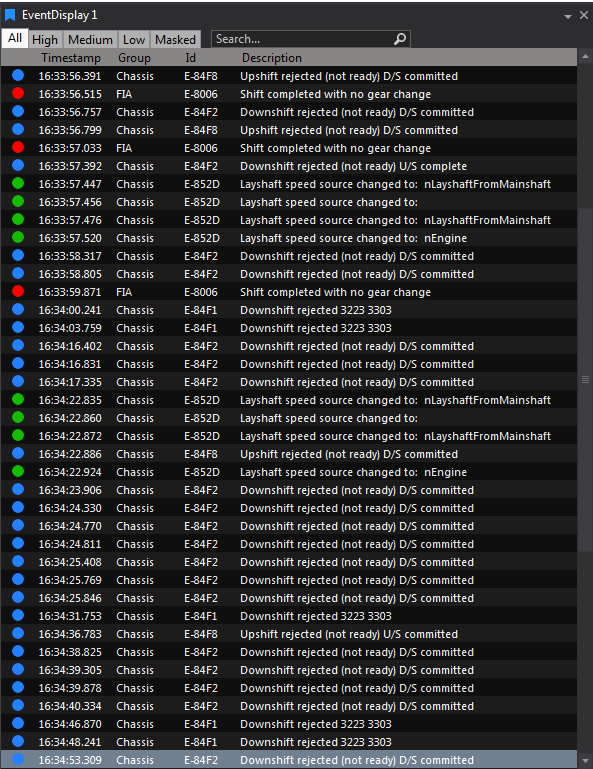
ECU Events (from program version files defined in Options), with Priority (High/Medium/Low), Timestamp, Group, Id, Description, and parameter snapshots at the event time. Tabs allow quick filtering by priority or “Masked”. Clicking an event moves the timeline cursor to that time/distance.
Adding an Event Display#
-
Use the Event Display button on the DisplayToolbar.
-
Navigate to File > New > Display and select Event Display.
-
Press Ctrl + Q twice to open the QuickAccess Assistant and select New Event Display.
Event Display Overview Each event appears as a row with the following columns: - Priority Indicator: Symbol showing event priority: red for High, blue for Medium, green for Low. - Timestamp: Time when the event occurred. - Group: Parameter group name related to the event. - Id: Unique integer for diagnostics. - Description: Text describing the event. - Parameter Name: Value of selected parameters at event time. You can add up to 100 parameters.
Filtering and Customization
- Tabs at the top allow filtering by priority: All, High, Medium, Low, Masked.
- Column widths are adjustable (see "Columns in Displays").
- Click a column header to sort by that column. The sort order is remembered.
- Type in the Search... box to show only matching events. Press Esc to clear the search. Include EventId and Include Group Name add those columns to the search, and Persist Search Text saves the search with the workbook.
- Right-click and select Event Filters to choose which groups and events the display shows. When a filter is in use, the display shows an Event Filter Applied badge, and a Synced to Global Event Filters badge if it uses the global filters.
- Right-click selected events and select Mask Selected Event Id(s) or Mask Selected Event Group(s) to move known events to the Masked tab, so new events stand out. Use Unmask Selected Event Id(s) or Unmask Selected Event Group(s) to bring them back.
Moving through events
- Click an event to move the cursor to it. Press Up or Down to step through events; the cursor follows the selection.
- Select Current Event When Panning highlights the event at the cursor as you move through the data.
- Right-click and select Copy (Ctrl+C) to copy the selected rows.
Display Options - By default, text uses the foreground colour. - In Row Visualisation - Priority Based, turn on Enable High Colouring, Enable Medium Colouring or Enable Low Colouring to colour the row background by event priority, so high priority events stand out. - Other options control the columns (Show Priority Icons, Show Group Name, Show Event Id, Show Column Header), the grid and the font.